Windows Desktop App
Windows App Installation Guide
Install Snowdrift on Windows 10 or 11 and start uploading your photo library in minutes.
Pre-Installation Checklist
Before getting started, ensure you have:
- A Snowdrift account
- Windows 10 or Windows 11
- An active internet connection
- Permission to install apps on your PC
Installation Steps
Download and Run the Installer
Download the Snowdrift Windows installer. It downloads as an .exe file.
- 1.Locate the downloaded .exe file (usually in your Downloads folder).
- 2.Double-click the installer to run it.
Get Past the Windows Security Prompt
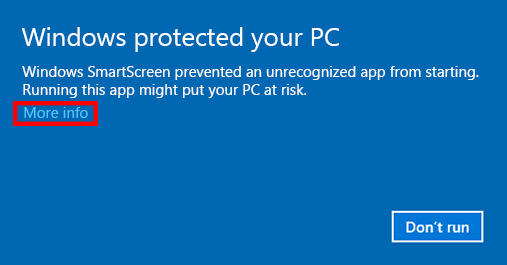
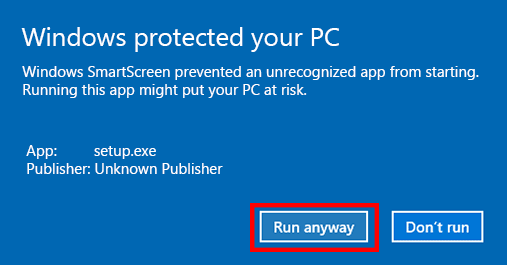
When you run the installer, Windows may show a blue "Windows protected your PC" SmartScreen prompt. This is expected — Snowdrift is safe to install. Follow these steps to continue.
Snowdrift is safe to use. This prompt simply appears for newer apps that Windows has not yet seen distributed widely.
- 1.On the "Windows protected your PC" dialog, click More info.
- 2.Click Run anyway to start the installer.
Complete the Installation
- 1.Follow the on-screen prompts to complete the installation.
- 2.Wait for the installer to finish.
- 3.Snowdrift will be added to your Start menu.
Launch and Sign In
- 1.Open Snowdrift from the Start menu or desktop shortcut.
- 2.Sign in to your Snowdrift account.
- 3.You're ready to start uploading.
Tip: Pin Snowdrift to your taskbar for quick access whenever you want to upload photos.
Using the App
- 1.Open the Snowdrift app from the Start menu or desktop shortcut.
- 2.Sign in to your Snowdrift account.
- 3.Select the folders or photos you want to upload.
- 4.Snowdrift uploads them directly to your account.
Keep the app running while uploads are in progress. You can close it once your uploads have completed.
Troubleshooting
Windows blocks the installer
- This is the Windows SmartScreen prompt described in Step 2. Click More info, then Run anyway.
- Confirm the download completed before running the installer.
The app won't sign in
- Verify you are connected to the internet.
- Confirm you are using the correct Snowdrift account credentials.
- Close and reopen the app, then try again.
Uploads are not working
- Verify the app is still running.
- Verify you are connected to the internet.
- Verify you are signed into the correct Snowdrift account.
Frequently Asked Questions
Why does Windows say the app is unrecognized?
Windows SmartScreen shows this prompt for apps it has not yet seen widely distributed. Snowdrift is safe to install. Click More info, then Run anyway to continue.
Which versions of Windows are supported?
Snowdrift runs on Windows 10 and Windows 11.
Do I need to keep the app running?
Keep the app open while uploads are in progress. You can close it once your uploads have completed.
Can I use the Lightroom plugin with the Windows app?
Yes. Install the Windows desktop app first, then install the Lightroom Classic plugin to send photos directly from Lightroom.
Ready to start uploading?
Download Snowdrift for Windows and move your photo library to the cloud.