Lightroom Classic Plugin
Lightroom Classic Plugin Installation Guide
Send photos directly from Adobe Lightroom Classic to Snowdrift.
Desktop App Required
The Snowdrift Lightroom Classic Plugin requires the Snowdrift Desktop App to be installed and running on the same computer.
The Lightroom plugin communicates with the Desktop App to securely upload photos to your Snowdrift account. The plugin will not function without the Desktop App.
If you have not already installed the Desktop App, complete Step 1 before installing the Lightroom plugin.
Pre-Installation Checklist
Before getting started, ensure you have:
- A Snowdrift account
- Adobe Lightroom Classic installed
- The Snowdrift Desktop App installed
- An active internet connection
Installation Steps
Install the Snowdrift Desktop App
Download and install the Snowdrift Desktop App for your operating system.
- 1.Download the installer.
- 2.Complete the installation.
- 3.Launch the Snowdrift Desktop App.
- 4.Sign in to your Snowdrift account.
- 5.Leave the Desktop App running while using Lightroom.
Once the Desktop App is running and you are signed in, continue to Step 2.
Download the Lightroom Plugin
Download the latest version of the Snowdrift Lightroom Classic Plugin.
- 1.Download the ZIP file.
- 2.Extract the ZIP archive.
- 3.Locate the resulting .lrplugin folder.
Important: Do not rename the .lrplugin folder.
Install the Plugin in Lightroom Classic
- 1.Open Adobe Lightroom Classic.
- 2.Navigate to File → Plug-in Manager.
- 3.Click Add.
- 4.Browse to the extracted Snowdrift.lrplugin folder.
- 5.Select the folder.
- 6.Verify Lightroom reports the plugin as enabled.
The Snowdrift plugin should now appear in Lightroom.
Connect to Snowdrift
- 1.Ensure the Snowdrift Desktop App is open.
- 2.Confirm you are signed into the Snowdrift account you want to upload to.
- 3.Return to Lightroom Classic.
- 4.Verify the plugin shows a connected or ready state if applicable.
Your Lightroom installation is now connected to Snowdrift.
Send Photos to Snowdrift
After installation, photos are uploaded by selecting them in Lightroom and using the Snowdrift menu command.
- 1.Open Adobe Lightroom Classic.
- 2.Select one or more photos.
- 3.From the menu bar choose:
File → Plug-in Extras → Send to Snowdrift - 4.The Snowdrift Desktop App will receive the selected photos and begin the upload process.
- 5.Follow any prompts to choose the destination album if applicable.
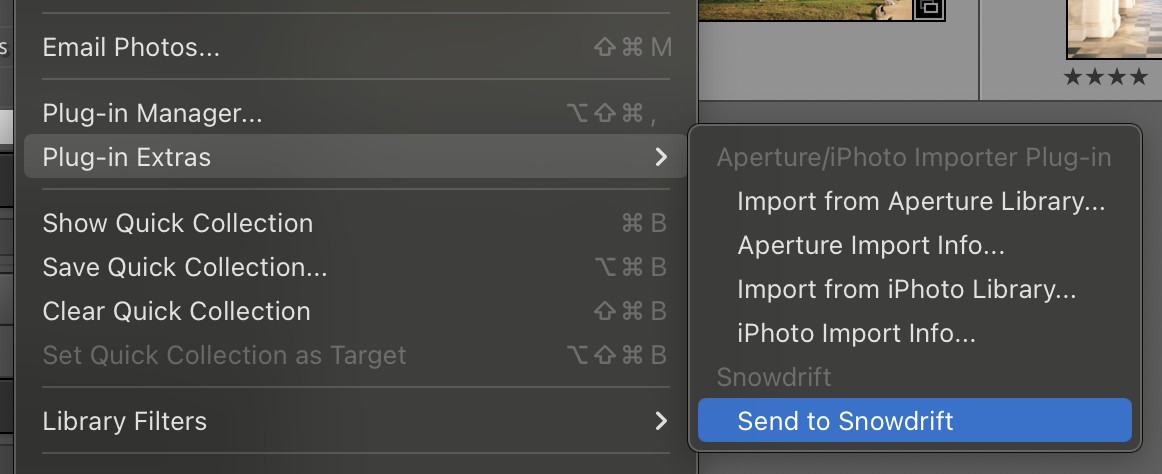
Tip: You can select a single photo, multiple photos, an entire folder, or a collection before choosing "Send to Snowdrift."
Important: The Snowdrift Desktop App must be running when you use the "Send to Snowdrift" command. The Lightroom plugin sends selected photos to the Desktop App, which performs the upload to your Snowdrift account.
Troubleshooting
The plugin does not appear in Lightroom
- Verify the ZIP file was extracted.
- Verify you selected the .lrplugin folder in Plug-in Manager.
- Restart Lightroom Classic.
The plugin cannot connect
- Verify the Snowdrift Desktop App is installed.
- Verify the Desktop App is running.
- Verify you are signed into Snowdrift.
- Restart Lightroom and the Desktop App.
Uploads are not working
- Verify the Desktop App is still running.
- Verify you are connected to the internet.
- Verify you are signed into the correct Snowdrift account.
I cannot find the upload option
- The upload command is available under File → Plug-in Extras → Send to Snowdrift.
- Ensure the Snowdrift plugin is installed and enabled in the Plug-in Manager.
Frequently Asked Questions
Do I need the Desktop App?
Yes. The Lightroom Classic Plugin requires the Snowdrift Desktop App and will not function without it.
Can I use the plugin without installing the Desktop App?
No. The Desktop App is required because it handles authentication and uploads to Snowdrift.
Does the plugin automatically sync my Lightroom catalog?
No. Snowdrift currently uses a user-initiated workflow. Select the photos you want to upload and choose “Send to Snowdrift” when you're ready.
Can I upload entire collections?
Yes. You can select collections, folders, or individual photos and then use the Send to Snowdrift command.
Does this work on Mac and Windows?
Yes. Install the Snowdrift Desktop App for your operating system and then install the Lightroom Classic Plugin.
Ready to upload from Lightroom?
Install the Desktop App and the Lightroom Classic plugin, then send photos straight to Snowdrift.