Mac Desktop App
Mac App Installation Guide
Install Snowdrift on macOS and start uploading your photo library in minutes.
Pre-Installation Checklist
Before getting started, ensure you have:
- A Snowdrift account
- macOS (Apple Silicon or Intel)
- An active internet connection
- Administrator access to install apps
Installation Steps
Download the Installer
Download the Snowdrift macOS installer. It downloads as a .dmg disk image file.
Open the Disk Image
- 1.Locate the downloaded Snowdrift .dmg file (usually in your Downloads folder).
- 2.Double-click the .dmg file to open it.
- 3.A window will appear showing the Snowdrift app and your Applications folder.
Drag Snowdrift to Applications
In the window that appears, drag the Snowdrift app icon onto the Applications folder to install it.
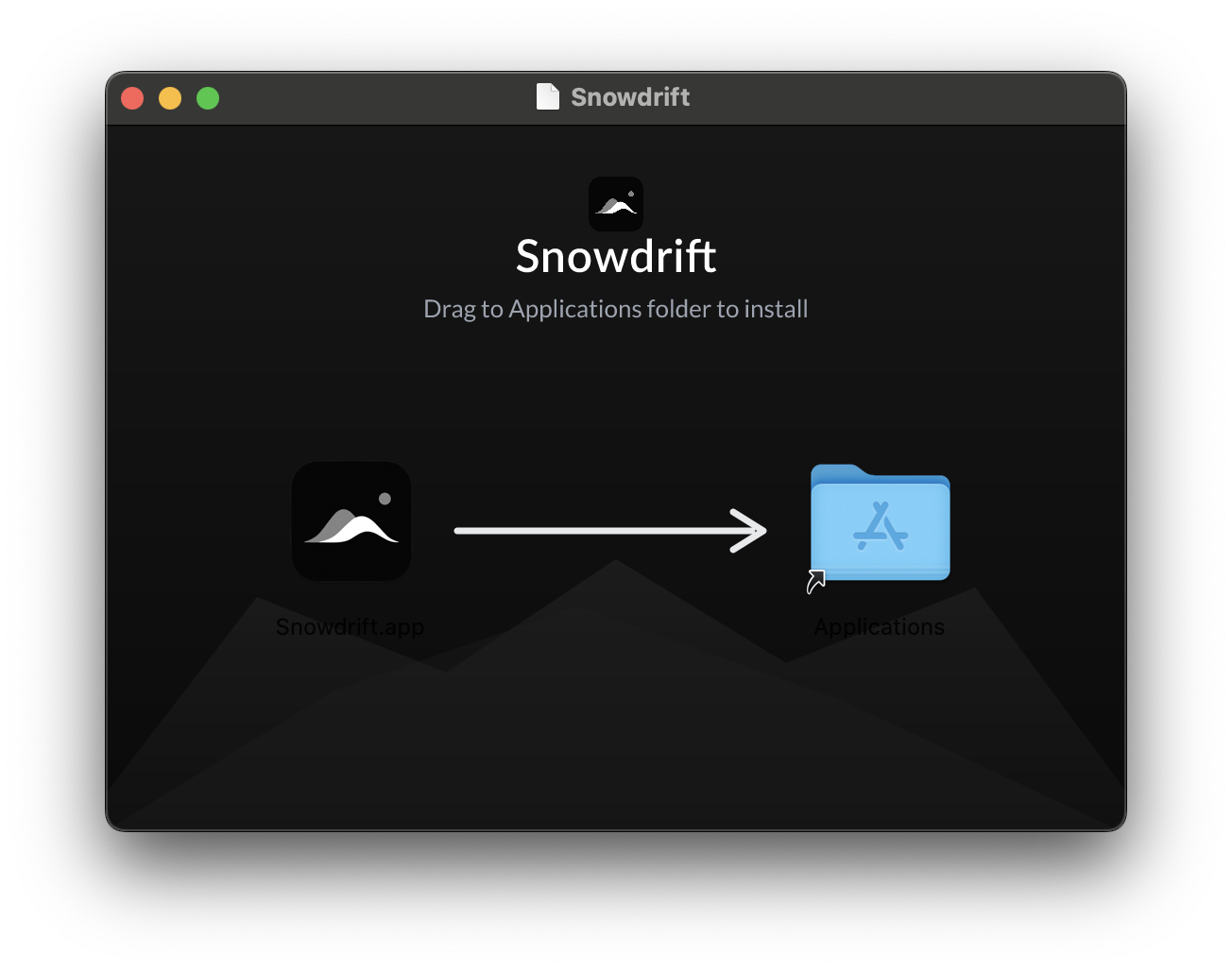
Once copied, Snowdrift is installed and available in your Applications folder. You can eject the disk image afterward.
Launch and Sign In
- 1.Open Snowdrift from your Applications folder, Launchpad, or Spotlight.
- 2.Sign in to your Snowdrift account.
- 3.You're ready to start uploading.
Tip: The first time you open the app, macOS may ask you to confirm you want to open it. Click Open to continue.
Using the App
- 1.Open the Snowdrift app from your Applications folder.
- 2.Sign in to your Snowdrift account.
- 3.Select the folders or photos you want to upload.
- 4.Snowdrift uploads them directly to your account.
Keep the app running while uploads are in progress. You can close it once your uploads have completed.
Troubleshooting
macOS won't open the app
- If macOS reports the app cannot be opened, right-click (or Control-click) the Snowdrift app and choose Open.
- Confirm the download completed before opening the .dmg.
- Make sure you dragged Snowdrift into the Applications folder before launching.
The app won't sign in
- Verify you are connected to the internet.
- Confirm you are using the correct Snowdrift account credentials.
- Quit and reopen the app, then try again.
Uploads are not working
- Verify the app is still running.
- Verify you are connected to the internet.
- Verify you are signed into the correct Snowdrift account.
Frequently Asked Questions
Which Macs are supported?
Snowdrift ships as a universal build that runs natively on both Apple Silicon and Intel Macs.
Where does the app get installed?
After dragging Snowdrift into the Applications folder, it installs like any other Mac app and is available from Launchpad and Spotlight.
Do I need to keep the app running?
Keep the app open while uploads are in progress. You can close it once your uploads have completed.
Can I use the Lightroom plugin with the Mac app?
Yes. Install the Mac desktop app first, then install the Lightroom Classic plugin to send photos directly from Lightroom.
Ready to start uploading?
Download Snowdrift for macOS and move your photo library to the cloud.